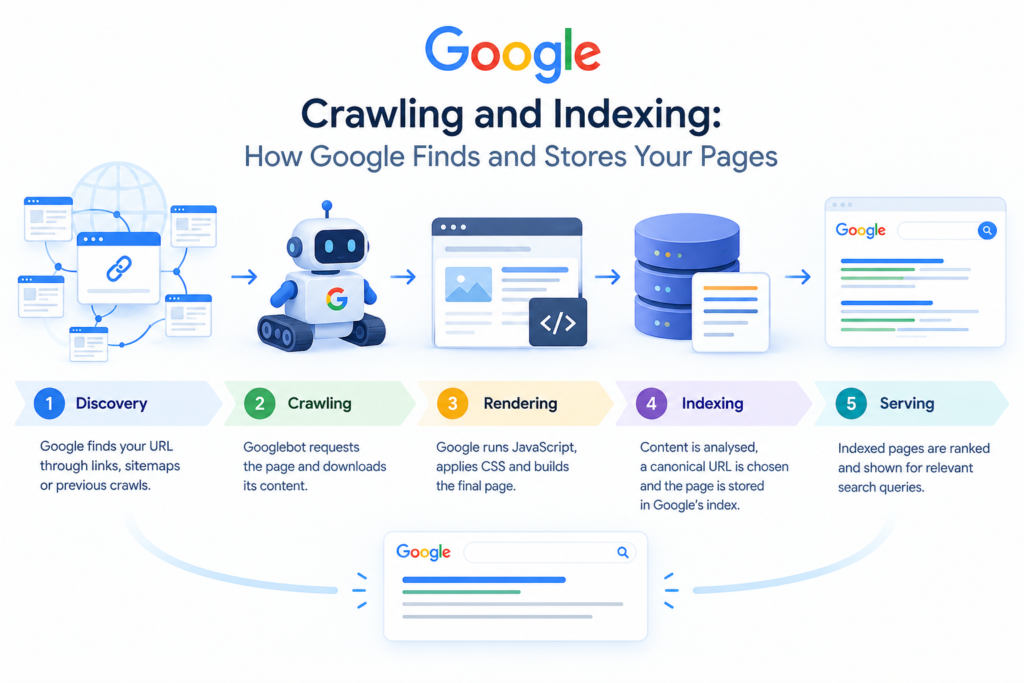
You publish a page, make sure it loads correctly, add it to the site navigation and wait for Google to find it. Then you open Search Console and discover that the URL is still absent from the index. If you are seeing pages not indexed the first job is not to request indexing again. It is to find out why Google has not included the URL.
The phrase Google not indexing my site can describe several very different situations. A page may be blocked by robots.txt, marked noindex, difficult to discover, redirected incorrectly, treated as a duplicate, unavailable to Googlebot, or crawled without being selected for indexing. These are different technical problems and they require different fixes.
Google’s Page indexing report makes this distinction important: “Not indexed” does not automatically mean something is broken. Some URLs should remain outside the index, including duplicates and pages intentionally excluded with noindex. The objective is to get important, canonical URLs indexed—not to force every URL into Google.
First, Confirm That the Page Is Actually Not Indexed
Start with Google Search Console rather than a normal Google search. Put the exact URL into URL Inspection and check the current indexing status. Then compare the result with the Page indexing report.
A site search can be a useful secondary check, but it doesn’t replace Search Console. Google explains that an indexed URL may not appear for every search, while a URL shown as not indexed has a specific status or reason that can be investigated.
- Inspect the exact URL in Search Console.
- Check whether crawling is allowed.
- Check whether indexing is allowed.
- Review the selected or user-declared canonical.
- Check the last crawl and live test results.
- Match the URL to the relevant Page indexing status before changing anything.
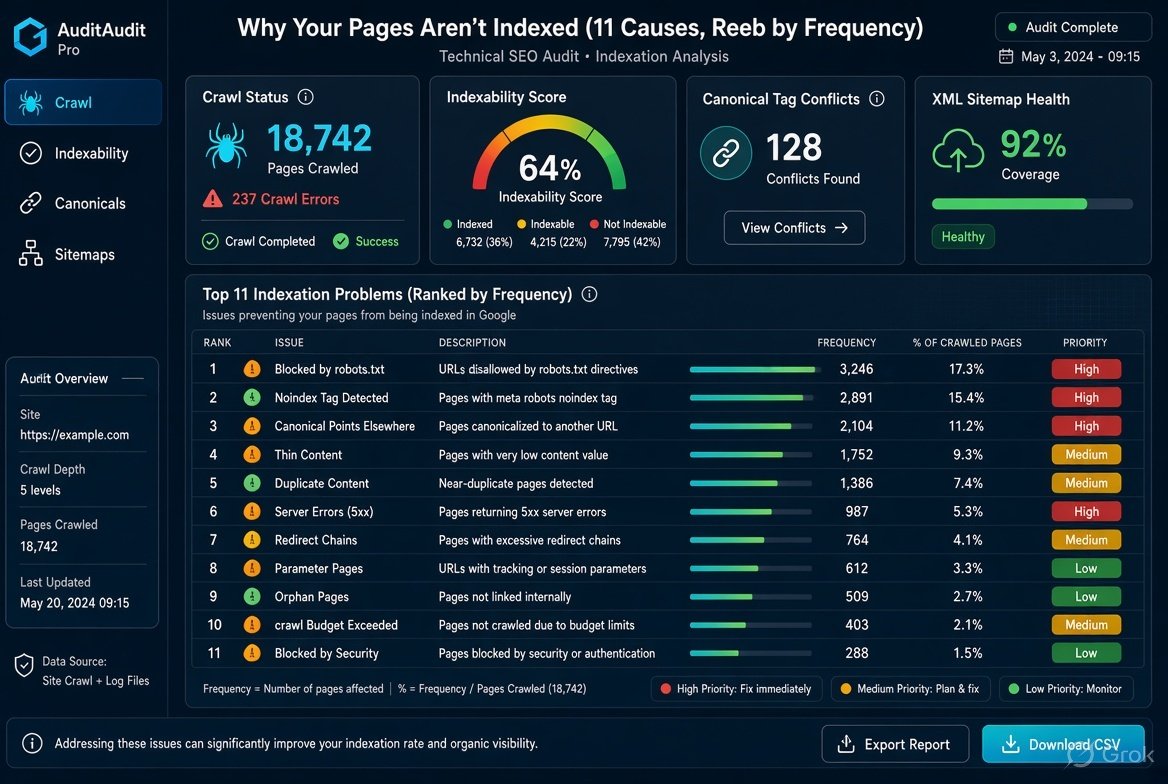
The 11 Most Common Reasons Pages Are Not Indexed
1. Accidental noindex directive
An accidental noindex directive is one of the fastest things to check. It can be introduced through a CMS setting, SEO plugin, template, staging configuration or HTTP response header. Google supports noindex through a robots meta tag or X-Robots-Tag. If a page should appear in Search, remove the unintended directive and allow Google to crawl the page so it can see the change.
What to do: Check the rendered HTML and response headers. In Search Console, confirm that “Indexing allowed?” is not being blocked by noindex. If the directive is intentional, do not remove it simply to increase the indexed count.
2. Robots.txt blocks crawling
Robots.txt controls whether crawlers can request URLs. A broad Disallow rule can unintentionally cover a valuable folder, a new content section or an entire site after a deployment. Google specifically warns that robots.txt is not the correct mechanism for keeping a page out of Search, because a blocked URL may still be indexed if Google discovers information about it elsewhere.
What to do: Review robots.txt against the URL path. Remove only the rule that blocks a page that genuinely needs to be crawled. Do not solve a noindex requirement by adding a robots.txt block.
3. Google cannot discover the URL
Some pages not indexed are simply not discoverable. Google needs a way to learn that the URL exists, such as a crawlable internal link, sitemap or other discoverable reference. Google recommends making important pages reachable through links and using sitemaps to help with discovery.
What to do: Check whether the page has useful internal links from already-known pages. Confirm that the canonical URL is present in the XML sitemap when appropriate. A sitemap is a discovery aid, not a guarantee of indexing.
4. The page is a duplicate or Google selected another canonical
Duplicate URLs are not necessarily an error. Google clusters duplicate or very similar pages and selects a canonical representative. Problems occur when your preferred canonical differs from the signals Google receives from redirects, internal links, sitemap entries and canonical tags.
What to do: Compare the user-declared canonical with Google’s selected canonical. Align internal links, redirects, sitemap URLs and canonical tags around one preferred URL. Do not use robots.txt as a canonicalisation method.
5. The page is returning an error or unusable status
A URL that returns a 5xx response, inappropriate 4xx response or access restriction cannot be treated like a healthy indexable page. Google’s Page indexing documentation lists server errors, 403 responses and other 4xx conditions among reasons a URL may not be indexed.
What to do: Test the URL from outside the logged-in environment. Check HTTP status, server logs, CDN rules, firewall settings and authentication. A page intended for public search should be accessible to Googlebot without requiring a user login.
6. Redirects are broken or inconsistent
Redirect chains, loops and invalid redirect destinations can stop Google from reaching the intended canonical page. A redirect also changes which URL should be indexed, so the final destination needs to be the page you actually want in Search. Google lists redirect errors as a Page indexing status.
What to do: Test the complete redirect path. Prefer a direct redirect to the final canonical URL where possible. Remove loops and avoid sending important URLs through unnecessary intermediate redirects.
7. The page is thin, empty or effectively a soft 404
A page can return a technically successful HTTP response while offering little or no meaningful content. Google may classify some such pages as soft 404s. This commonly appears with empty category pages, placeholder templates, expired listings and error pages that incorrectly return 200.
What to do: Compare the page with its intended search purpose. Make sure the main content is actually present, useful and accessible to crawlers. If the resource genuinely does not exist, return an appropriate 404 or 410 rather than creating a thin placeholder.
8. Google has crawled the page but has not selected it for indexing
Crawled-but-not-indexed status is different from a crawl block. Google has accessed the URL, but it has not added it to the index at that point. Repeated indexing requests do not replace the need to understand the page, its uniqueness, canonical relationship and overall usefulness.
What to do: Review the page for duplication, weak differentiation, empty sections, templated content and poor internal context. Strengthen the page only where there is a genuine user need; do not add filler solely to increase word count.
9. The URL was discovered but has not yet been crawled
Discovered-but-not-indexed means Google knows the URL but has not crawled it yet. Google notes that crawling and indexing are not instantaneous and that some URLs can be scheduled later.
What to do: Confirm that the URL is important, internally linked and included appropriately in a sitemap. Check for large crawlable URL sets, duplicate paths and technical barriers. If the page is new, allow time for normal crawling rather than treating every delay as an error.
10. Important content depends too heavily on JavaScript rendering
Google can process JavaScript, but rendering introduces additional complexity. Content, links or indexing directives that exist only after JavaScript execution can create search visibility problems when implementation is incomplete or when the rendered page differs from the intended HTML. Google recommends making important content available in crawlable HTML and checking JavaScript-specific search problems.
What to do: Compare the raw HTML with the rendered page. Make sure primary content, internal links and critical metadata are present in a way Google can process. Check for client-side routing, API failures, blocked resources and incorrect status codes.
11. Site-wide technical or security problems interfere with crawling
When many URLs disappear together, investigate site-wide changes rather than auditing one page at a time. Google recommends looking for corresponding spikes in non-indexed URLs and checking for robots.txt, noindex, login requirements, server problems and security issues.
What to do: Look for a deployment date, CMS update, migration, template change, CDN/firewall change or security incident that matches the indexing drop. Compare affected URL groups rather than treating every URL as an isolated case.
A Practical Diagnosis Workflow in Google Search Console
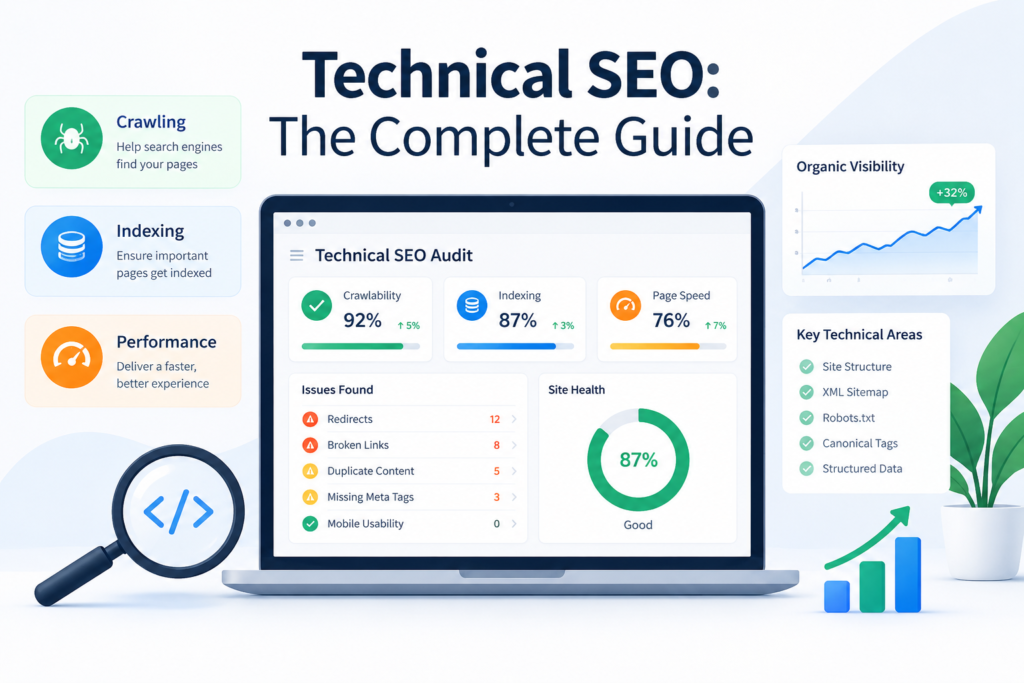
When you are dealing with indexing issues , work from evidence to cause. The fastest audits are not the ones with the longest checklist; they are the ones that identify the exact Search Console status and then test the corresponding technical layer.
- Start with URL Inspection: Confirm whether the exact URL is on Google and inspect the indexing verdict.
- Check crawl access: Review robots.txt, server availability, authentication and access restrictions.
- Check indexability: Look for noindex directives in HTML and HTTP headers.
- Check canonicalisation: Compare the declared canonical with Google’s selected canonical and with redirects and sitemap signals.
- Check discoverability: Review internal links and XML sitemap inclusion.
- Check page quality and uniqueness: For crawled-but-not-indexed URLs, inspect duplication, thin content and whether the page has a clear purpose.
- Check rendering: For JavaScript-heavy pages, compare raw HTML and rendered output.
- Validate the fix: Test the live URL, then allow Google to recrawl. Use request indexing when appropriate, but treat it as a request—not a guarantee.
What to Fix First
If a large group of pages not indexed appears at once, start with changes that can affect many URLs. A site-wide robots.txt rule, noindex template, authentication barrier or server error can be more consequential than an individual page-level content problem.
| Priority | Check | Typical evidence | Action |
| 1 | Access and server | 5xx, 403, login wall, CDN/firewall block | Restore public crawl access and stable responses. |
| 2 | Robots and noindex | Blocked by robots.txt or noindex | Remove unintended restrictions. |
| 3 | Canonical and redirects | Google selected another canonical, redirect error | Consolidate signals around the preferred URL. |
| 4 | Discovery | URL known poorly or absent from linked architecture | Add useful crawlable internal links and maintain the sitemap. |
| 5 | Content selection | Crawled – currently not indexed | Improve uniqueness, usefulness and page purpose where justified. |
| 6 | Rendering | Important content/links missing in rendered processing | Fix JavaScript delivery, routing or server-rendered HTML issues. |
How to Prevent Future Indexing Issues
- Include an indexing check in every major deployment and migration checklist.
- Keep production templates free from staging noindex rules.
- Monitor robots.txt changes as configuration changes, not just content changes.
- Keep XML sitemap URLs clean and focused on canonical pages you want in Search.
- Use consistent canonical, redirect and internal-link signals.
- Audit large URL parameter, filter and faceted-navigation systems before they create thousands of low-value URLs.
- Track Page indexing trends in Search Console after site redesigns, CMS releases and server changes.
- For JavaScript applications, test both source HTML and rendered output before releasing major routing or template changes.
Final Takeaway
When pages not indexed appears in an SEO report, treat it as a diagnostic category rather than a single problem. The important question is not simply “Why is Google not indexing this page?” but “What does Google’s current evidence say about this URL?”
The most reliable workflow is to inspect the URL, identify the exact indexing status, verify crawl access and indexability, review canonical signals, confirm discovery, then investigate content selection and rendering when the technical controls are healthy. That approach turns indexing issues from a vague symptom into a sequence of testable causes and fixes.
For teams asking Google not indexing my site, the same principle applies at site level: segment affected URLs, identify what changed, find the common technical signal and fix the root cause before repeatedly requesting indexing.
FAQs
1. Why are my pages not indexed by Google?
Common causes include noindex directives, robots.txt blocks, poor URL discovery, canonicalisation conflicts, server or redirect errors, soft 404s, duplicate content, crawled-but-not-indexed pages and JavaScript rendering problems. Start with URL Inspection and the Page indexing report.
2. How do I check why a page is not indexed?
Open Google Search Console, use URL Inspection for the exact URL, review the indexing status, then check crawl access, indexing permission, canonical information and live-test results. The Page indexing report is useful for identifying patterns across groups of URLs.
3. Does submitting a sitemap guarantee indexing?
No. Google describes a sitemap as a discovery and canonical signal, not a guarantee that URLs will be crawled or indexed. Important URLs should also be reachable through a logical internal-link structure.
4. Should I request indexing for every page that is not indexed?
No. First determine why the URL is not indexed. Requesting a crawl can be appropriate after a meaningful fix or for an important new URL, but it does not override robots.txt, noindex, canonicalisation, access or quality problems.
5. Can a page be indexed but still not appear in Google results?
Yes. Indexing means Google has included the URL in its index; it does not guarantee visibility for every query. Search results vary by query, user and other factors. If Search Console reports the URL as indexed, investigate ranking and query relevance separately from indexation.